How to edit some words in translated content?
As we all know, Gelacy uses auto-translation technology powered by the latest AI model to localize your store in a few minutes. All newly added content will be translated automatically without any further effort. However, AI is not perfect, and you might want to make changes to the content created by AI.
Here is how you use it:
Step 1: Identify where the translated content is incorrect
Identify where the translated content is incorrect: Home page, Product page, Collection page, Cart page, or Checkout page
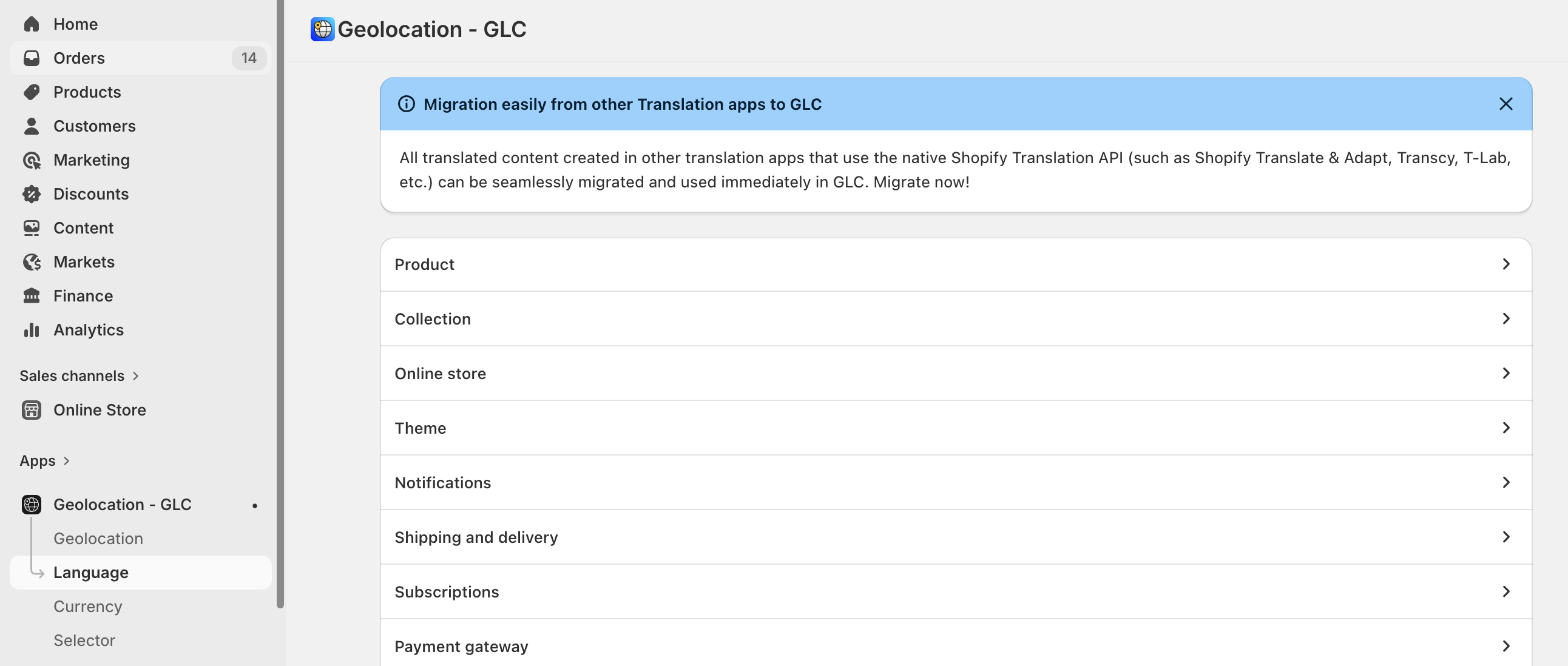
Step 2: Go to the target language and the corresponding section
Go to the target language and the corresponding section:
- Product: if the incorrect content appears on the Product page.
- Collection: if the incorrect content appears on the Collection page.
- Online store: if the incorrect content appears in Blog posts/titles, Pages, or the Navigation menu.
- Theme: if the incorrect content appears on the Home page, Cart page, or Checkout page.
- Shipping and delivery: if the incorrect content appears in the Shipping section on the Checkout page.
- Payment gateway: if the incorrect content appears in the Payment section on the Checkout page.
- Policies: if the incorrect content appears on the Policies pages.
Step 3: Edit the content and save
Edit the content and click the Save button to apply the changes.
Step 4: Verify the changes
Re-check your storefront to confirm that the correct content is now displayed.
Lastly, since Gelacy uses the native Shopify Translation API and Shopify stores content differently than how it appears on the storefront, the page you are viewing might not be listed above. In such cases, the content might be saved on the Home page.
If you cannot find where the content is, please feel free to contact our support team at [email protected] for further assistance. Clearly describe what you are trying to do and provide a staff account with the proper permissions, and we will start investigating for you.